Day 23: Setting Up Your First MCP Server - GitHub
Step-by-step GitHub MCP setup for Claude Code. Create PAT, add server, verify connection. 10 minutes. Read issues, review PRs, implement from backlog directly.
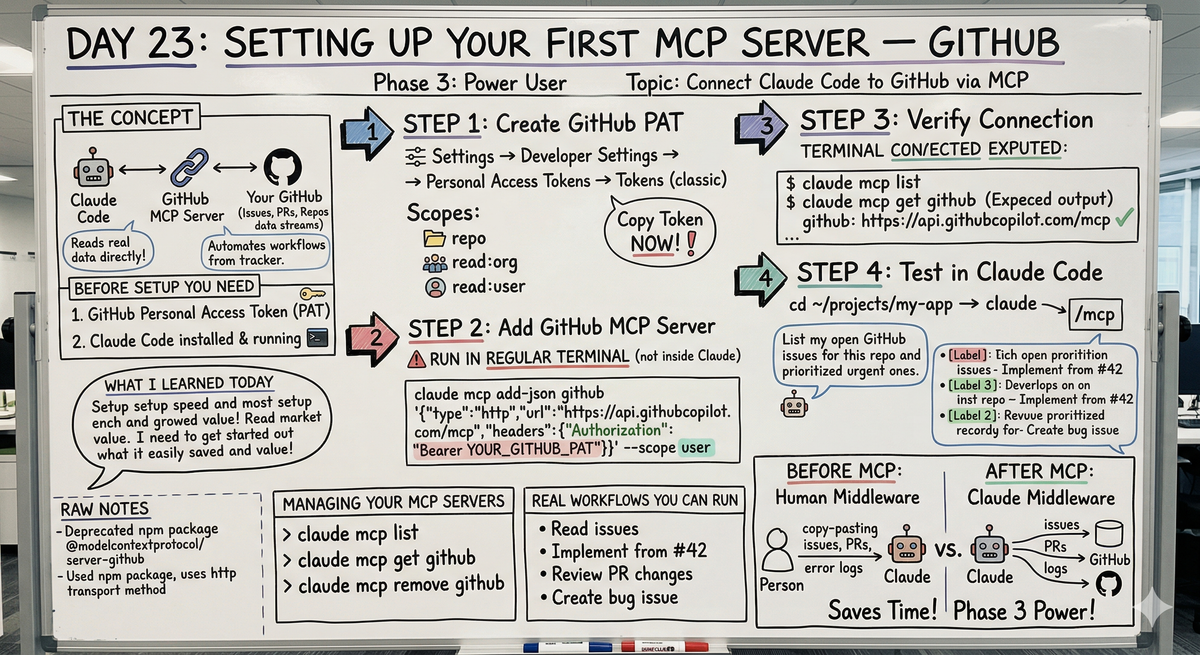
Hey, it's G.
Day 23 of the Claude Code series.
Day 22 explained what MCP is.
Day 23 is where it gets real.
Today I connected Claude Code to GitHub using the official GitHub MCP server.
The setup took less than 10 minutes.
The moment I asked Claude Code to read my actual GitHub issues and it did — no copy-pasting, no context switching — it clicked why MCP is such a big deal.
The Concept (GitHub MCP Server)
The GitHub MCP server is an official integration maintained by GitHub itself.
Once connected, Claude Code can read your repositories, issues, pull requests, and code directly.
You ask it something about your GitHub repo and it goes and gets the real data.
With the GitHub MCP server connected you can:
- Read your issues and PRs without leaving your terminal
- Implement features directly from your issue tracker
- Analyze PR changes and catch bugs before merge
- Create issues from bugs you find mid-session
- Automate workflows that touch both code and GitHub
All from inside your Claude Code session.
No browser tabs. No copy-pasting. No context switching.
What You Need Before Setup
Two things:
1. A GitHub Personal Access Token (PAT)
This is how the MCP server authenticates with GitHub on your behalf.
You create it once in your GitHub settings.
2. Claude Code Installed and Running
Which you already have from Day 1.
The setup has three steps:
- Create your PAT
- Add the MCP server to Claude Code
- Verify it works
Step 1: Create a GitHub Personal Access Token
Navigate to GitHub settings:
- Go to GitHub.com
- Click your profile picture (top right)
- Settings
- Scroll down to Developer Settings (left sidebar)
- Personal Access Tokens
- Tokens (classic)
Generate the token:
- Click "Generate new token (classic)"
- Give it a name:
claude-code-mcp - Set expiration: 90 days or no expiration (your choice)
Select these scopes:
- ✓
repo— full repository access - ✓
read:org— read organization membership - ✓
read:user— read user profile
Generate and copy:
- Click "Generate token" (bottom of page)
- Copy the token immediately — you won't see it again
- Save it somewhere safe temporarily
Your token looks like this:
ghp_xxxxxxxxxxxxxxxxxxxxxxxxxxxxxxxxxxxx
Step 2: Add the GitHub MCP Server to Claude Code
Run this command in your terminal — not inside Claude Code, but in your regular terminal:
claude mcp add-json github '{"type":"http","url":"https://api.githubcopilot.com/mcp","headers":{"Authorization":"Bearer YOUR_GITHUB_PAT"}}'
Replace YOUR_GITHUB_PAT with the token you just copied.
To make it available across all your projects, add --scope user:
claude mcp add-json github '{"type":"http","url":"https://api.githubcopilot.com/mcp","headers":{"Authorization":"Bearer YOUR_GITHUB_PAT"}}' --scope user
What this does:
- Registers the GitHub MCP server with Claude Code
- Stores your authentication token
--scope usermakes it work in all projects (without it, only works in current directory)
Step 3: Verify the Connection
Check it's registered:
claude mcp list
You should see:
github: https://api.githubcopilot.com/mcp
Get server details:
claude mcp get github
You should see:
Name: github
Type: http
URL: https://api.githubcopilot.com/mcp
Scope: user
If you see this, you're connected.
Step 4: Test It Inside Claude Code
Start a Claude Code session:
cd ~/projects/my-app
claude
Verify the MCP server is active:
/mcp
You should see:
Active MCP servers:
- github ✓
Ask it something real:
List my open GitHub issues for this repo and
tell me which one looks most urgent
If Claude reads your actual issues and responds with real data — you're fully connected.
Managing Your MCP Servers
List all configured servers:
claude mcp list
Get details for a specific server:
claude mcp get github
Remove a server:
claude mcp remove github
Update a server (remove and re-add):
claude mcp remove github

claude mcp add-json github '{"type":"http","url":"https://api.githubcopilot.com/mcp","headers":{"Authorization":"Bearer NEW_TOKEN"}}' --scope user
Complete Setup Example (Start to Finish)
Let me walk you through the entire setup in one clean flow.
Step 1: Terminal Setup
Run this in your terminal (not inside Claude Code):
claude mcp add-json github \
  '{"type":"http","url":"https://api.githubcopilot.com/mcp",\
  "headers":{"Authorization":"Bearer ghp_yourtoken"}}' \
  --scope user
(Replace ghp_yourtoken with your actual PAT)
Step 2: Verify Registration
claude mcp list
Output:
github: https://api.githubcopilot.com/mcp ✓
Step 3: Test in Session
cd ~/projects/resiboko
claude
Inside Claude Code:
/mcp
Output:
Active MCP servers:
- github ✓
Now test with a real query:
List all open issues in this repo.
Which one should I work on next?
Claude responds:
Reading your GitHub issues for resiboko...

You have 5 open issues:

High Priority:
1. "Fix mobile layout on expense page" (#47)
   - Label: bug, high-priority
   - Opened 2 days ago
   - Multiple user reports in comments

Medium Priority:
2. "Add CSV export for expenses" (#45)
   - Label: enhancement
   - Requested by 3 users
   - Clear requirements in description

3. "Improve loading state on dashboard" (#42)
   - Label: ux-improvement
   - Low effort, high impact

Low Priority:
4. "Add dark mode" (#38)
   - Label: enhancement
   - Nice to have
   - No blockers

5. "Update dependencies" (#36)
   - Label: maintenance
   - Can wait

Recommendation: Start with #47 "Fix mobile layout"
- Highest priority
- Affecting real users
- Clear bug report with steps to reproduce

Want me to read the full issue and implement the fix?
Claude read your actual GitHub issues.
Analyzed the labels.
Prioritized based on urgency.
No copy-pasting. No browser tabs. All from the terminal.
Real Workflows You Can Run Right Now
Workflow 1: Read and Prioritize Issues
claude
List all open issues in this repo.
Which one should I work on next?
Claude reads issues, analyzes labels and descriptions, gives recommendation.
Workflow 2: Implement from Issue
Read issue #42 and implement the feature it describes.

Follow our CLAUDE.md conventions.
Claude reads the issue, understands requirements, implements the feature, follows your project conventions.
Workflow 3: Review a Pull Request
Review the changes in PR #15.

Check for:
- Bugs or logic errors
- Convention violations
- Anything that looks risky to merge
Claude reads the PR diff, analyzes the code, finds issues, gives review feedback.
Workflow 4: Create Issue from Bug
We just fixed a bug — null user state on dashboard
initial render.

Create a GitHub issue documenting this bug and the fix.
Label it as bug.
Claude creates the issue with description, steps to reproduce, and the fix that was applied.
Workflow 5: Analyze Repository
Read the README and main code files in this repo.
Tell me what this project does and how it's structured.
Claude reads your repository files directly from GitHub, analyzes structure, explains the codebase.
Common Setup Issues
Issue 1: "Server not found" Error
Problem: You ran claude mcp add-json inside a Claude Code session instead of your regular terminal.
Fix: Exit Claude Code and run the command in your regular terminal.
Issue 2: "Authentication failed" Error
Problem: Token is incorrect or missing required scopes.
Fix: Generate a new PAT with repo, read:org, read:user scopes. Remove old server and re-add with new token.
claude mcp remove github
claude mcp add-json github '{"type":"http","url":"https://api.githubcopilot.com/mcp","headers":{"Authorization":"Bearer NEW_TOKEN"}}' --scope user
Issue 3: MCP Server Not Showing as Active
Problem: Server registered but not active in session.
Fix: Check scope. If you didn't use --scope user, the server only works in the directory where you registered it.
Re-add with user scope:
claude mcp remove github
claude mcp add-json github '{"type":"http","url":"https://api.githubcopilot.com/mcp","headers":{"Authorization":"Bearer YOUR_PAT"}}' --scope user
Issue 4: Token Expired
Problem: 90-day expiration passed.
Fix: Generate new token, remove old server, add new server with fresh token.
Why This Matters
Before MCP you were the human middleware between Claude Code and your GitHub.
Describing issues. Copying PR diffs. Pasting error logs.
With the GitHub MCP server connected that whole layer disappears.
Claude Code accesses your GitHub directly.
You just tell it what you need.
This is the first taste of what Phase 3 is really about:
Claude Code that operates across your entire development environment.
Not just your local files.
My Raw Notes (Unfiltered)
The setup was faster than I expected.
The hardest part was remembering where to find PAT settings in GitHub.
The --scope user flag is important — without it the server only works in the current project.
Immediately useful on day one — asked it to read my open issues and prioritize them and it came back with a ranked list based on labels and descriptions.
The /mcp command inside Claude Code shows you which servers are active which is handy to verify before relying on it.
Note: The old npm package @modelcontextprotocol/server-github is deprecated as of April 2025 — use the http transport method shown here instead.
Tomorrow (Day 24 Preview)
Topic: MCP in Practice — real workflows you can run with GitHub MCP connected, and how to combine MCP context with your local codebase.
What I'm covering:
- Building features directly from GitHub issues
- PR review workflows that catch bugs
- Creating documentation from code + issues
- Combining MCP data with local file context
This is where MCP becomes part of your daily workflow.
Following This Series
Phase 1 (Days 1-7): Foundations ✅
Phase 2 (Days 8-21): Getting Productive ✅
Phase 3 (Days 22-30): Power User ⬅️ You are here
So far in Phase 3:
- Day 22: What MCP is and why it matters
- Day 23: Setting up your first MCP server (today)
- Day 24: MCP in practice (tomorrow)
G
P.S. - Setup takes 10 minutes: create PAT, add server with claude mcp add-json, verify with claude mcp list. Use --scope user to make it work everywhere.
P.P.S. - The /mcp command inside Claude Code shows active servers. Use it to verify before relying on MCP in a session.
P.P.P.S. - Once connected, just ask Claude to read your issues, review PRs, or implement from your backlog. No copy-pasting. No browser tabs. All in the terminal.