Day 25: Building Your Own MCP Server
Learn to build custom MCP servers for Claude Code. TypeScript and Python examples. Internal tools, private APIs, team workflows. Under an hour to build.

Hey, it's G.
Day 25 of the Claude Code series.
Days 22 to 24 were about using existing MCP servers.
Day 25 is about building your own.
Most developers will never need to — there are hundreds of pre-built servers already.
But the moment you have an internal tool, a private API, or a workflow that no existing server covers, knowing how to build one changes everything.
Today I learned when it makes sense and how surprisingly simple the minimal version actually is.
The Problem (Existing Servers Don't Cover Everything)
The GitHub MCP server is powerful.
You can read issues, review PRs, create PRs, update issues.
But what about:
- Your internal CMS that only your team uses?
- Your custom database with proprietary schema?
- Your company's internal API for deployment status?
- Your team's specific workflow that no public tool covers?
No pre-built MCP server exists for these.
Because they're yours.
You could manually copy data between these tools and Claude Code.
Or you could build a custom MCP server that connects them directly.
The Concept (When to Build vs Use Existing)
Building a custom MCP server makes sense in three situations:
1. You Have an Internal Tool or API
Something that doesn't have a public MCP server because it's yours.
Your internal CMS. Your custom database. Your company's internal API.
2. No Existing Server Fits Your Workflow
You've looked at the available servers and none of them do quite what you need.
Or they do too much and you want something focused.
3. You Want to Package a Workflow for Your Team
A custom MCP server is a way to give your whole team a shared set of Claude Code capabilities that work consistently across projects.
If none of those apply — use an existing server.
There's no prize for building your own if someone already built it.
What an MCP Server Actually Is
At its core, an MCP server is just a program that exposes tools — functions Claude Code can call.
Each tool has:
1. A Name
How Claude calls it
2. A Description
How Claude decides when to call it
3. An Input Schema
What arguments it accepts
4. A Handler
The function that runs when Claude calls it
The tool description is how the AI model decides whether to call your tool.
A vague description means the model will rarely use it correctly.
Be specific about:
- What the tool does
- What inputs it expects
- What it returns
Each tool should do one thing well.
A tool that analyzes text, translates it, and formats the output is three tools pretending to be one.
Split it.
The model can chain multiple focused tools more effectively than a monolithic one.
Two Transport Options
Stdio Transport
Runs your server as a local child process.
The client spawns it, communicates via stdin/stdout, and kills it when done.
Use for:
- Personal tools
- Local development
- Team tools on local machines
HTTP Transport
Runs your server as a network service that multiple clients can connect to simultaneously.
Use for:
- Remote access
- Cloud deployment
- Team-shared tools accessed from different machines
For your first server: stdio.
It's simpler and works perfectly for personal and team use on local machines.
How to Build One (TypeScript)
Step 1: Setup
mkdir my-mcp-server && cd my-mcp-server
npm init -y
npm install @modelcontextprotocol/sdk zod
Step 2: Create the Server
Create src/index.ts:
import { McpServer } from "@modelcontextprotocol/sdk/server/mcp.js";
import { StdioServerTransport } from "@modelcontextprotocol/sdk/server/stdio.js";
import { z } from "zod";

const server = new McpServer({
  name: "my-mcp-server",
  version: "1.0.0",
});

// Define a tool:
server.tool(
  "get_project_status",
  "Get the current status of a project by name. Returns open issues count, last deployment date, and current version.",
  {
    project_name: z.string().describe("The name of the project"),
  },
  async ({ project_name }) => {
    // Your logic here — call an API, query a DB, read a file
    const status = await fetchProjectStatus(project_name);

    return {
      content: [{
        type: "text",
        text: JSON.stringify(status)
      }]
    };
  }
);

// Start the server:
const transport = new StdioServerTransport();
server.connect(transport);

// Use stderr for logs — never stdout (stdout is for MCP protocol)
console.error("MCP server running");
Breaking it down:
- Import the SDK and Zod for schema validation
- Create the server with name and version
- Define tools with
server.tool() - Connect stdio transport
- Log to stderr (stdout is reserved for MCP protocol)
Step 3: Build
Add to package.json:
{
  "scripts": {
    "build": "tsc"
  }
}
Create tsconfig.json:
{
  "compilerOptions": {
    "target": "ES2022",
    "module": "Node16",
    "moduleResolution": "Node16",
    "outDir": "./build",
    "rootDir": "./src",
    "strict": true
  }
}
Build it:
npm run build
Step 4: Register with Claude Code
claude mcp add-json my-server \
  '{"command":"node","args":["/absolute/path/to/build/index.js"]}' \
  --scope user
Replace /absolute/path/to/ with your actual path.
Step 5: Verify
claude mcp list
You should see:
my-server: node /absolute/path/to/build/index.js
How to Build One (Python — Simpler)
Python with FastMCP is noticeably more concise.
If you're comfortable with Python, it's the faster path to a working server.
Step 1: Setup
pip install mcp
Step 2: Create the Server
Create server.py:
from mcp.server.fastmcp import FastMCP

mcp = FastMCP("my-mcp-server")

@mcp.tool()
def get_project_status(project_name: str) -> str:
    """Get the current status of a project by name.
    Returns open issues count, last deployment date, and version."""

    # Your logic here
    status = fetch_project_status(project_name)
    return str(status)

if __name__ == "__main__":
    mcp.run()
That's it.
The decorator @mcp.tool() automatically:
- Extracts the function name as the tool name
- Uses the docstring as the tool description
- Infers the input schema from type hints
- Handles the response format
Step 3: Register with Claude Code
claude mcp add-json my-server \
  '{"command":"python","args":["/absolute/path/to/server.py"]}' \
  --scope user
Step 4: Verify
claude mcp list
Debug Before Registering
Use the MCP Inspector to test your tools visually before connecting to Claude Code:
npx @modelcontextprotocol/inspector build/index.js
The MCP Inspector:
- Shows you every JSON-RPC message exchanged
- Lets you call tools manually
- Displays responses in real-time
- Helps debug issues before registering with Claude Code
Use it for visual debugging before going live.
Practical Custom Server Example
A server that wraps your internal Supabase queries with tools Claude Code can call directly:
import { McpServer } from "@modelcontextprotocol/sdk/server/mcp.js";
import { StdioServerTransport } from "@modelcontextprotocol/sdk/server/stdio.js";
import { z } from "zod";
import { createClient } from "@supabase/supabase-js";

const supabase = createClient(
  process.env.SUPABASE_URL!,
  process.env.SUPABASE_KEY!
);

const server = new McpServer({
  name: "internal-tools",
  version: "1.0.0",
});

// Tool 1: Look up user by email
server.tool(
  "get_user_by_email",
  "Look up a user record in the database by email address. Returns user ID, display name, subscription tier, and created date.",
  {
    email: z.string().email().describe("User's email address")
  },
  async ({ email }) => {
    const { data } = await supabase
      .from("users")
      .select("*")
      .eq("email", email)
      .single();

    return {
      content: [{
        type: "text",
        text: JSON.stringify(data, null, 2)
      }]
    };
  }
);

// Tool 2: Get recent errors
server.tool(
  "get_recent_errors",
  "Fetch the 10 most recent error logs from the database. Returns error message, stack trace, timestamp, and user ID if available.",
  {},
  async () => {
    const { data } = await supabase
      .from("error_logs")
      .select("*")
      .order("created_at", { ascending: false })
      .limit(10);

    return {
      content: [{
        type: "text",
        text: JSON.stringify(data, null, 2)
      }]
    };
  }
);

// Tool 3: Check subscription status
server.tool(
  "check_subscription",
  "Check if a user has an active Pro subscription. Returns boolean and expiration date if active.",
  {
    user_id: z.string().describe("User's UUID")
  },
  async ({ user_id }) => {
    const { data } = await supabase
      .from("subscriptions")
      .select("*")
      .eq("user_id", user_id)
      .eq("status", "active")
      .single();

    const hasActiveSub = !!data;
    const expiresAt = data?.expires_at || null;

    return {
      content: [{
        type: "text",
        text: JSON.stringify({
          hasActiveSub,
          expiresAt
        }, null, 2)
      }]
    };
  }
);

const transport = new StdioServerTransport();
server.connect(transport);
console.error("Internal tools MCP server running");
Now Claude Code can query your actual database directly with natural language.
Complete Real Example (Build to Usage)
Let me walk you through building and using a custom server from scratch.
Step 1: Build the Server
mkdir ~/projects/internal-mcp
cd ~/projects/internal-mcp
npm init -y
npm install @modelcontextprotocol/sdk zod @supabase/supabase-js
Create the server file (shown above).
Add build script to package.json.
Build:
npm run build
Step 2: Register with Claude Code
claude mcp add-json internal-tools \
  '{"command":"node","args":["/Users/g/projects/internal-mcp/build/index.js"]}' \
  --scope user
Step 3: Verify Registration
claude mcp list
Output:
github: https://api.githubcopilot.com/mcp
internal-tools: node /Users/g/projects/internal-mcp/build/index.js
Step 4: Use It in a Session
cd ~/projects/my-app
claude
Verify it's active:
/mcp
Output:
Active MCP servers:
- github ✓
- internal-tools ✓
Now use it:
Look up the user with email [email protected]
Claude responds:
Querying database for user...

Found user:
{
  "id": "abc-123-def",
  "email": "[email protected]",
  "display_name": "Test User",
  "subscription_tier": "Pro",
  "created_at": "2026-01-15T10:30:00Z"
}
Show me the 10 most recent errors
Claude responds:
Fetching recent error logs...

Most recent errors:

1. Error: "Null user state on dashboard"
   User: abc-123-def
   Time: 2026-03-14 14:23:00
   Stack: /app/dashboard/page.tsx:23

2. Error: "Failed to fetch subscription data"
   User: xyz-789-ghi
   Time: 2026-03-14 13:45:00
   Stack: /utils/subscriptions.ts:67

[continues...]

Pattern detected: 3 of the 10 errors are null state issues
on dashboard. Looks like the fix from yesterday didn't cover
all cases.
Based on these errors, what's the most likely root cause
and which file in our codebase should I look at?
Claude responds:
Analyzing errors with codebase context...

Most likely root cause:
The dashboard null state checks are incomplete.
Issue #41 fix covered initial render but not
the case where user logs out mid-session.

File to check: /app/dashboard/page.tsx

Looking at the file now...

Found the issue at line 45:
```tsx
// Missing null check here after logout:
const displayName = user.displayName
Should be:
const displayName = user?.displayName ?? "Loading..."
Want me to fix it?
---

**Live database data plus local codebase context.**

**In one session.**

**That's the power of custom MCP servers.**

---

## Tool Description Best Practices

**The tool description is everything.**

That's how Claude decides when to call it.

---

**❌ Vague description:**

```typescript
server.tool(
  "get_data",
  "Gets data from the database",
  // ...
);
Result: Claude rarely uses it correctly.
✓ Specific description:
server.tool(
  "get_user_by_email",
  "Look up a user record in the database by email address. Returns user ID, display name, subscription tier, and created date.",
  // ...
);
Result: Claude knows exactly when and how to use it.
Make descriptions:
- Specific about what it does
- Clear about what inputs are needed
- Explicit about what it returns
When NOT to Build a Custom Server
Don't build a custom server if:
1. An Existing Server Does the Job
Check first:
- MCP server registry
- GitHub topic: mcp-server
- Anthropic's official servers
2. You Can Use Direct API Calls Instead
If you only need it once, just call the API directly in your code.
MCP servers are for repeated workflows.
3. The Workflow Changes Too Often
If your tool's behavior changes daily, maintain a script instead.
MCP servers work best for stable, repeatable workflows.
Why This Matters
Most developers will get 90% of their MCP value from existing servers.
But the 10% — your internal tools, your private APIs, your team's specific workflows — that's where a custom server pays back massively.
And the barrier is lower than it looks.
A basic server with two or three tools takes under an hour to build.
The official SDKs handle all the protocol complexity:
- JSON-RPC framing
- Capability negotiation
- Transport management
Your implementation focuses entirely on the business logic of your tools.
My Raw Notes (Unfiltered)
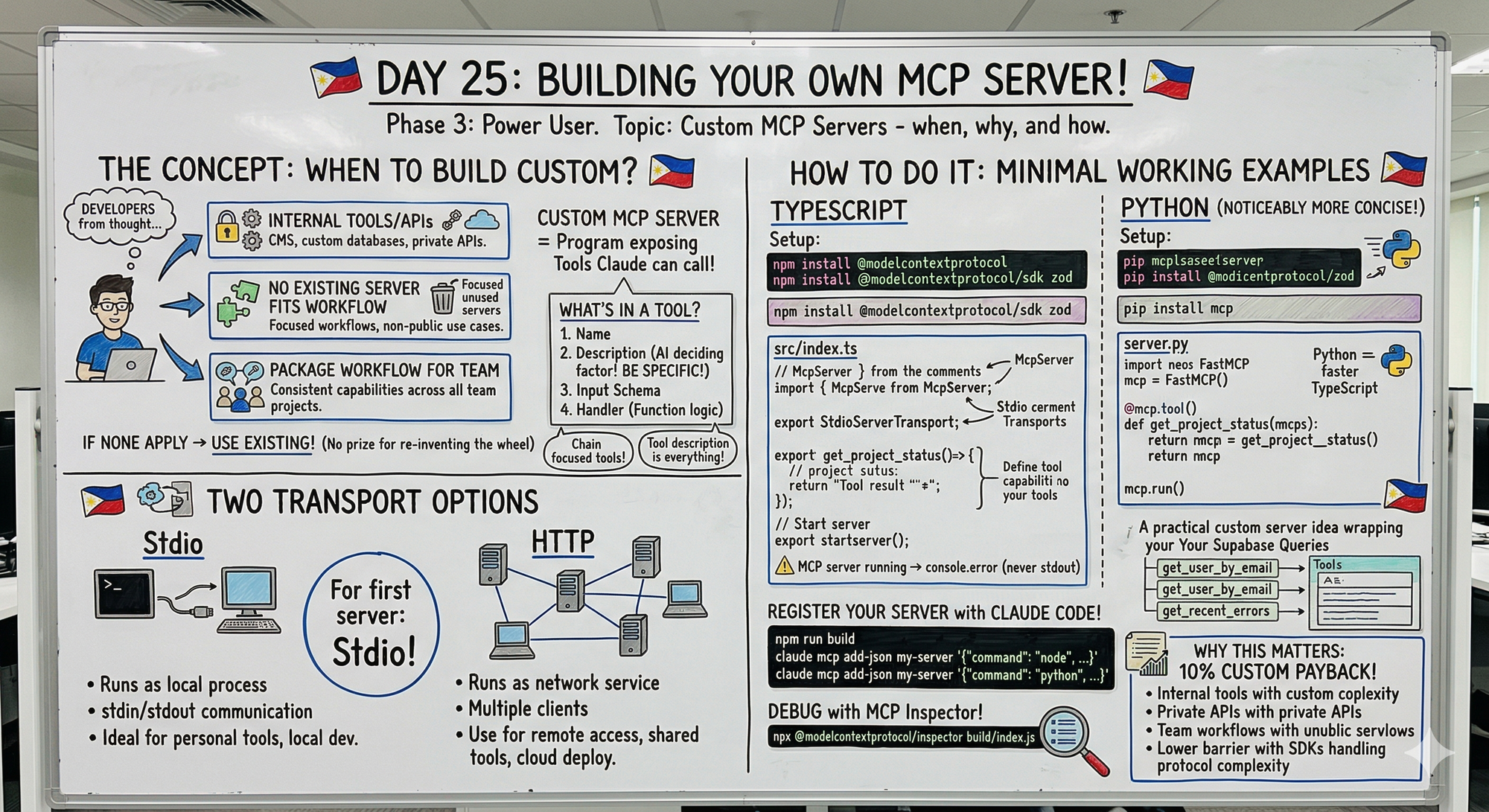
Python FastMCP is genuinely simpler than TypeScript for this — if you know Python at all it's the faster path.
The Inspector tool is underrated — debugging MCP servers without it is painful.
The key insight for me was that the tool description is what Claude uses to decide when to call it — vague descriptions mean it never gets used.
The Supabase example is the one I actually want to build for my own projects.
Before building anything custom, always check if a server already exists — most common use cases are covered.
Tomorrow (Day 26 Preview)
Topic: What Claude Skills Are and How They Differ from CLAUDE.md
What I'm covering:
- Skills vs CLAUDE.md comparison
- When to use each
- Built-in skills library
- Creating custom skills
- Skills in production workflows
MCP track complete. Skills track starts.
Following This Series
Phase 1 (Days 1-7): Foundations ✅
Phase 2 (Days 8-21): Getting Productive ✅
Phase 3 (Days 22-30): Power User ⬅️ You are here
MCP Track (Days 22-25): ✅ Complete
- Day 22: What MCP is and why it matters
- Day 23: Setting up your first MCP server (GitHub)
- Day 24: MCP in practice
- Day 25: Building your own MCP server (today)
Skills Track (Days 26-28): ⬅️ Starting tomorrow
G
P.S. - Build a custom MCP server when you have internal tools, private APIs, or team-specific workflows. Otherwise use existing servers.
P.P.S. - Python FastMCP is simpler than TypeScript. If you know Python, it's the faster path.
P.P.P.S. - Tool descriptions are everything. Vague = never used. Be specific about what the tool does, what inputs it needs, and what it returns.