Day 27: Installing and Using Existing Skills
Day 27: Installing and Using Existing Claude Skills — Quick Start

Hey, it's G.
Day 27 of the Claude Code series.
Day 26 explained what skills are.
Before building my own, I went looking for what already exists.
And there's more than I expected.
Anthropic has published a set of official skills, and the community has been building more.
Today I learned how to find them, install them in Claude Code, and actually use them.
Turns out the fastest path to skill value isn't building — it's installing.
The Problem (Re-Inventing What Already Exists)
Here's what happens when you don't check for existing skills:
You need Claude Code to create Word documents with proper formatting.
You spend an hour building a custom skill.
You write the YAML frontmatter. Write the instructions. Test it. Debug it.
It works. You're proud.
Then you discover Anthropic already built a docx skill.
Production-tested. Handles edge cases you didn't think of. Better output quality.
You just re-invented the wheel.
Same pattern for:
- Creating presentations
- Building frontend components
- Reading PDFs
- Working with spreadsheets
All of these already have official skills.
Installing takes 5 minutes.
Building from scratch takes hours.
The Concept (Start With What Exists)
Before building a custom skill, always check if one already exists.
The MCP ecosystem has hundreds of servers someone already built.
Skills are the same — there's a growing library of official and community skills covering the most common workflows.
Anthropic publishes official skills covering:
- Document creation (Word, PowerPoint, Excel, PDF)
- Frontend design
- Code workflows
- File reading and extraction
- And more
These are production-ready, well-tested, and immediately useful.
The skill-creator skill — which helps you build and iterate on your own skills — is itself an official skill worth installing on day one.
Skills are portable across surfaces.
A skill you install in Claude Code works the same way in Claude.ai.
Install once. Use everywhere.
Two Types of Skill Installation
Personal Skills
Installed in ~/.claude/skills/
Available across every project on your machine.
Use for: Skills you want in all projects.
Project Skills
Installed in .claude/skills/
Available only in that specific project.
Use for: Team-shared workflows you want committed to the repo.
How to Find Official Skills
The official skills repository lives on GitHub:
https://github.com/anthropics/skills
Official skills available right now:
frontend-design
Create high-quality frontend interfaces and components with distinctive design
docx
Create and work with Word documents — proper formatting, styles, tables
pptx
Create and work with PowerPoint presentations — slides, layouts, themes
xlsx
Create and work with Excel spreadsheets — formulas, charts, formatting
pdf
Read, create, and manipulate PDF files
skill-creator
Build and iterate on your own skills — the meta-skill
file-reading
Read and extract content from uploaded files — PDFs, Word docs, images
And more being added.
How to Install Skills (Manual Method)
Step 1: Navigate to Your Personal Skills Folder
cd ~/.claude/skills/
Step 2: Clone the Official Skills Repo
git clone https://github.com/anthropics/skills.git
This gives you all official skills at once.
Or copy just the skill you want:
- Download the folder from GitHub
- Place it in
~/.claude/skills/
Structure should be:
~/.claude/skills/
├── frontend-design/
│   └── SKILL.md
├── docx/
│   └── SKILL.md
├── pptx/
│   └── SKILL.md
└── skill-creator/
    └── SKILL.md
Step 3: Verify Claude Code Sees Your Skills
claude
What skills do you have available?
Claude should list all skills in your skills folder by name.
Expected response:
Available skills:
- frontend-design: Create distinctive production-grade frontend interfaces
- docx: Create and work with Word documents
- pptx: Create and work with PowerPoint presentations
- xlsx: Create and work with Excel spreadsheets
- pdf: Read, create, and manipulate PDF files
- skill-creator: Build and iterate on your own skills
- file-reading: Read and extract content from uploaded files
How to Use Installed Skills
Skills trigger automatically when your request matches the trigger phrases in their description.
You don't need to call them explicitly — just ask naturally.
Example 1: Frontend Design
claude
Create a pricing page component with three tiers —
Free, Pro, and Enterprise.

Match the style of the existing components in /components/ui/
The frontend-design skill triggers automatically.
Claude:
- Reads existing components for patterns
- Builds production-grade, distinctive UI
- Follows design quality checklist
- Avoids generic AI aesthetics
Example 2: Word Document
Create a Word document proposal for a new feature
based on the notes in /docs/feature-notes.md
The docx skill triggers automatically.
Claude:
- Reads the notes file
- Structures content properly
- Uses appropriate headings and formatting
- Creates professional-quality document
Example 3: Building New Skills
Help me build a new skill for my deployment workflow
The skill-creator skill triggers automatically.
Claude walks you through:
- Use case definition
- Frontmatter generation
- Instruction writing
- Validation and test cases
Example 4: Explicit Invocation (If Needed)
If Claude doesn't auto-trigger, be explicit:
Use the frontend-design skill to build a dashboard
layout with a sidebar and main content area
Install skill-creator First
This is the one skill worth installing before anything else.
It helps you build, review, and improve your own custom skills.
# After cloning or downloading:
ls ~/.claude/skills/skill-creator/
# Should show: SKILL.md
Use it:
claude
Use the skill-creator skill to help me build a skill
for my code review workflow
Claude responds:
I'll help you build a code review skill.

Let's start with the use case:

1. What specific aspects of code do you want to review?
   - Bugs and logic errors?
   - Security issues?
   - Performance problems?
   - Code quality and style?
   - All of the above?

2. What output format do you prefer?
   - Severity-grouped findings?
   - File-by-file analysis?
   - Summary with recommendations?

3. Should the skill make changes or just report?
   - Report only (safer)
   - Report and suggest fixes
   - Report, suggest, and optionally apply fixes

Let me know your preferences and I'll draft the SKILL.md.
Managing Your Skills
See What's Installed
ls ~/.claude/skills/
Check a Specific Skill's Description
cat ~/.claude/skills/frontend-design/SKILL.md
See the frontmatter and instructions.
Update Skills from Official Repo
cd ~/.claude/skills/skills  # if you cloned the repo
git pull
Add this to your monthly maintenance routine alongside the CLAUDE.md audit from Day 10.
Remove a Skill
rm -rf ~/.claude/skills/skill-name/
Project-Level Skills for Teams
Install a skill for your whole team by committing it to the repo:
Step 1: Copy Skill to Project
mkdir -p .claude/skills/
cp -r ~/.claude/skills/frontend-design .claude/skills/
Step 2: Commit It
git add .claude/skills/
git commit -m "add frontend-design skill for team"
git push
Now everyone on your team who uses Claude Code on this project gets the skill automatically.
No manual installation. No explaining the workflow.
Just clone the repo and the skill is there.
Complete Real Session Example
Let me walk you through using the frontend-design skill in a real project.
Step 1: Verify Skills Are Installed
cd ~/projects/my-app
claude
What skills do you have available?
Claude responds:
Available skills:
- frontend-design: Create distinctive production-grade frontend interfaces
- docx: Create and work with Word documents
- skill-creator: Build and iterate on skills
- code-review: [your custom one from Day 26]
Step 2: Use frontend-design Skill
Build a subscription plans comparison page.

Three plans: Free, Pro ($29/mo), Enterprise (custom).

Each plan has a feature list and a CTA button.

Match the styling of /components/ui/Button.tsx
and /components/ui/Card.tsx
The skill triggers automatically.
Claude responds:
Building subscription plans comparison page...

Reading existing components for patterns:
- /components/ui/Button.tsx: variant system, size prop
- /components/ui/Card.tsx: shadow, padding, border radius

Creating comparison page with:
- Three-column layout (responsive stack on mobile)
- Card-based plan containers
- Feature lists with check icons
- CTA buttons matching existing variant system
- Accent on Pro plan (most popular badge)

Design decisions:
- Using existing Card component for consistency
- Button variants: outline for Free, filled for Pro/Enterprise
- Lucide icons for feature checks (matches existing icon usage)
- Tailwind spacing scale from existing components
- Dark mode support via existing CSS variable patterns

Creating /components/SubscriptionPlans.tsx...
Claude creates the component.
Quality differences with skill vs without:
- Matches existing design patterns automatically
- Uses actual components from codebase
- Responsive without being told
- Dark mode support
- Professional polish
Step 3: Use skill-creator to Build New Skill
I want to build a skill for my Supabase migration workflow.

Help me design and write it.
skill-creator walks you through:
Let's build a Supabase migration skill together.

STEP 1: Use Case Definition

What does your migration workflow involve?
1. Creating new migration files?
2. Running migrations up/down?
3. Checking migration status?
4. Generating migrations from schema changes?
5. All of the above?

STEP 2: Trigger Phrases

When would you invoke this skill? Examples:
- "Create a migration for..."
- "Run migrations"
- "Check migration status"
- "Generate migration from..."

What phrases fit your actual usage?

STEP 3: Output Requirements

What should the skill produce?
- Migration files with specific naming?
- SQL with certain formatting?
- Rollback scripts automatically?
- Status reports in specific format?

Share your preferences and I'll draft the SKILL.md.
You answer the questions.
skill-creator generates the complete SKILL.md for you.
You review, adjust, save.
Why This Matters
The official skills represent hundreds of hours of Anthropic's engineering work distilled into ready-to-use workflows.
Installing them takes five minutes.
Not using them means:
- Re-inventing workflows that already exist
- Missing edge cases the official skills handle
- Lower output quality
- Hours of work for what already exists
The fastest path to a complete Claude Code skill setup:
- Start with the official library
- Add community skills that fit your workflow
- Build custom skills only for the gaps that remain
Install what exists. Build only what's missing.
My Raw Notes (Unfiltered)
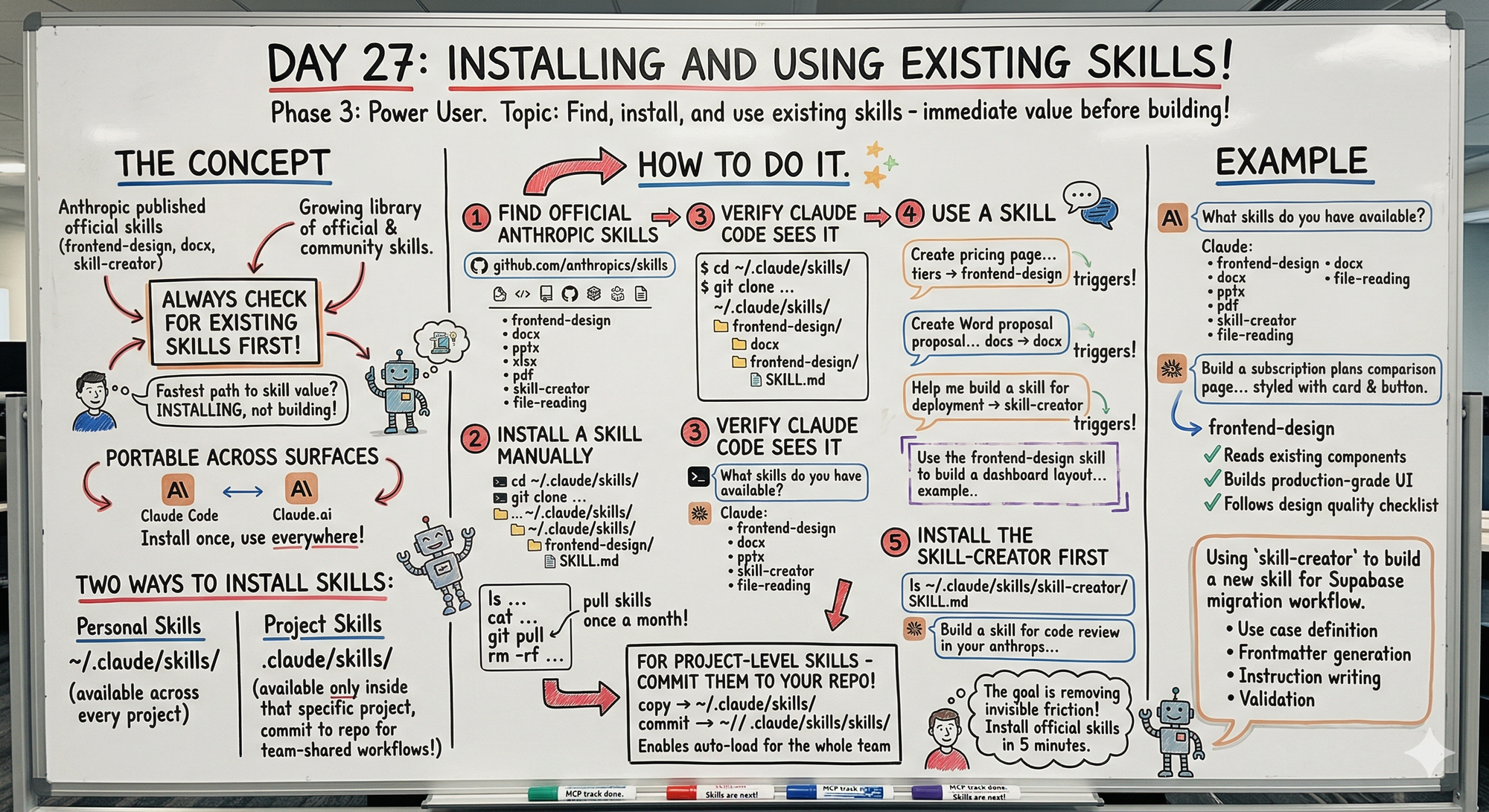
The skill-creator skill is the one to install first — it makes building your own skills so much easier.
The frontend-design skill is genuinely impressive. The output quality is noticeably different from just asking Claude to build a component without it.
The project-level skills idea for teams is something I want to implement for AI For Pinoys community projects — shared skills committed to the repo so everyone uses the same workflows.
The git pull to update skills is something to add to your monthly maintenance routine alongside the CLAUDE.md audit from Day 10.
Tomorrow (Day 28 Preview)
Topic: Writing Your First Custom Skill — packaging your own workflow into a skill so it works consistently every time.
What I'm covering:
- When to build vs install
- Using skill-creator to guide the process
- Writing effective frontmatter
- Structuring instructions
- Testing and iterating
- Real custom skill examples
Day 28 brings Skills track together: understand concepts (Day 26), install existing (Day 27), build custom (Day 28).
Following This Series
Phase 1 (Days 1-7): Foundations ✅
Phase 2 (Days 8-21): Getting Productive ✅
Phase 3 (Days 22-30): Power User ⬅️ You are here
MCP Track (Days 22-25): ✅ Complete
Skills Track (Days 26-28): ⬅️ You are here
- Day 26: What Skills are and how they differ from CLAUDE.md
- Day 27: Installing and using existing skills (today)
- Day 28: Writing your first custom skill (tomorrow)
G
P.S. - Before building a custom skill, check if one already exists. Official skills at github.com/anthropics/skills. Install in 5 minutes.
P.P.S. - skill-creator is the one to install first. It guides you through building your own skills with use cases, frontmatter, instructions, and validation.
P.P.P.S. - Project-level skills (.claude/skills/) committed to repo give your whole team the same workflows automatically. No manual setup.