Day 5: Claude Code Can Run Terminal Commands — Here's How To Control It
The command execution rules in CLAUDE.md are non-negotiable for me. Write them once, never repeat yourself, stay in control.
Hey, it's G.
Day 5 of the Claude Code series.
Today's the one that feels like actual magic when you first see it happen.
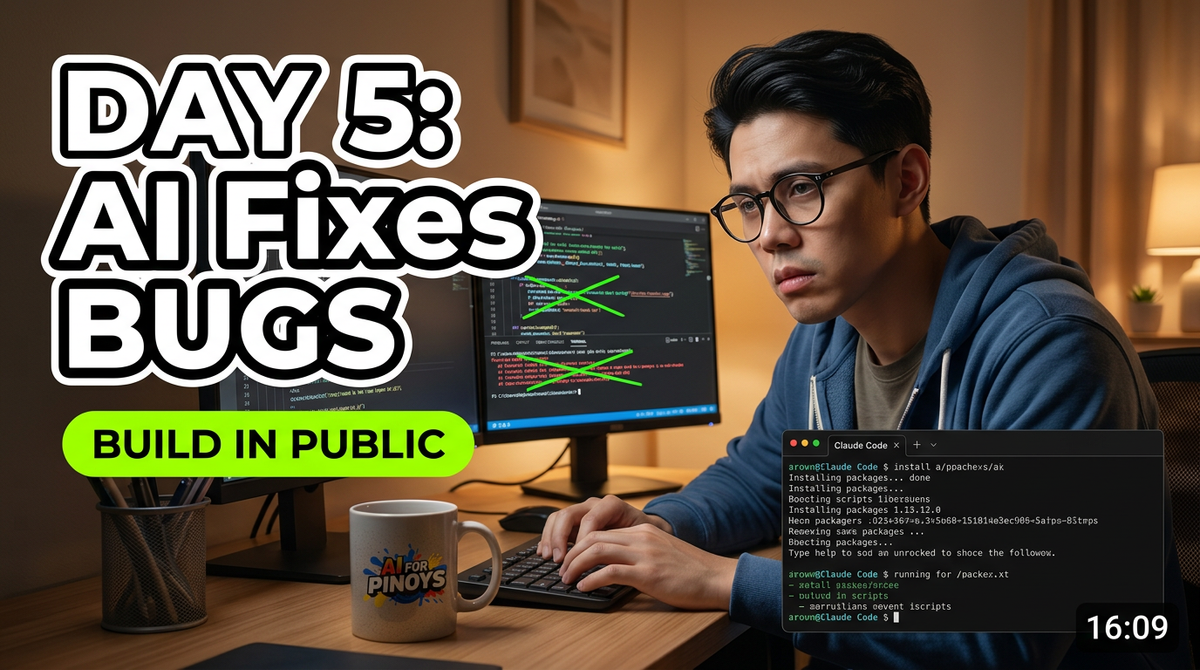
Claude Code isn't just a code writer. It can run terminal commands directly on your machine.
Install packages. Run builds. Start dev servers. Execute scripts. All without you typing a single command.
That's powerful. But it's also worth understanding deeply, because it's running real commands on your actual system.
Let me show you how it works and how to stay in control.
The First Time This Happens (It's Surreal)
Here's what happened to me:
I asked Claude to fix a date formatting bug:
> The date formatting is broken in /utils/dates.ts.
> Fix it using the date-fns library.
Claude responded:
I'll fix the date formatting. First I need to install date-fns.

Command: npm install date-fns
Proceed? (y/n)
I typed y.
Then I just watched:
- npm installed date-fns
- Claude opened /utils/dates.ts
- Rewrote the formatting logic
- Saved the file
- Told me it was done
I didn't type a single command. I just approved one.
That's when it clicked: This isn't autocomplete. This is an actual agent.
The Concept (What's Actually Happening)
Claude Code has the ability to execute bash commands in your terminal — the same terminal you're sitting in.
When you ask it to do something that requires running a command, it will either:
- Ask your permission first, or
- Just run it (depending on how you configure it)
There are two modes:
Auto-Run Mode
Claude Code runs commands without asking. Faster workflow, but you need to trust what it's doing.
Permission Mode (Default)
Claude Code shows you the command and waits for approval. Slower, but you stay in complete control.
By default, Claude Code asks before running most commands.
It shows you exactly what it's about to run and waits for you to type y (approve) or n (cancel).
The analogy:
Think of it like giving a contractor a key to your house. They can work while you're away — but you still want to know what tools they're using and when.
How It Decides What to Run
Claude Code automatically identifies when commands are needed:
Example 1: You ask it to install a package
> Add Zod validation to /lib/validation.ts
Claude knows:
- Zod needs to be installed first
- It needs to run
npm install zod - So it asks permission to run that command
Example 2: You ask it to verify a build
> Run the build and tell me if there are any errors
Claude knows:
- "Run the build" =
npm run build - So it either asks permission or just runs it (depending on your settings)
Example 3: You ask it to start the dev server
> Start the dev server
Claude runs: npm run dev
How To Control Command Execution
Pattern 1: Default Behavior (Ask Before Running)
This is what happens by default:
> Fix the broken API route in /app/api/users/route.ts

Claude: I need to run the following command:
npm install @supabase/supabase-js
Proceed? (y/n)
You type:
yto approvento cancel
Use this when: You want to review every command before it runs.
Pattern 2: Give Permission for a Session
Tell Claude it can run commands freely for this session:
> You have permission to run any commands needed to complete
> this task without asking each time
What happens:
For the rest of this session, Claude runs commands without asking.
Use this when: You're working on a trusted task and don't want constant interruptions.
Pattern 3: Always Require Permission
Tell Claude to always ask:
> Always ask me before running any terminal command
Use this when: You're working with production databases, migrations, or anything sensitive.
Pattern 4: Set Permanent Rules in CLAUDE.md
Add command rules to your CLAUDE.md:
## Behavior Rules
- Always ask before installing new dependencies
- Always ask before running database migrations
- Always ask before git commit or push
- You can run `npm run dev`, `npm run build`, and `npm run lint`
  freely without asking
Why this works:
You write it once. It applies every session. No need to repeat yourself.
This is what I use for Resiboko:
## Behavior Rules
- Always ask before installing dependencies
- Always ask before running Supabase migrations
- Always ask before git operations
- You can freely run: npm run dev, npm run build, npm run lint
- Never run npm publish or deployment commands without explicit permission
Commands Claude Code Commonly Runs
Package management:
npm install <package>
npm uninstall <package>
yarn add <package>
pnpm install <package>
Development:
npm run dev
npm run build
npm run lint
npm run test
Git operations:
git status
git add .
git commit -m "message"
git push
Database:
npx prisma migrate dev
npx supabase db push
npm run migrate
Other tools:
npx <tool>
curl <api-endpoint>
cat <file>
Real Example (How I Actually Use This)
Scenario: I need to add Zod validation to my Resiboko expense form.
The Old Way (Manual)
Me: Write Zod validation for the expense form

Claude: [generates code]

Me: [copies code]
Me: [opens file]
Me: [pastes code]
Me: [opens terminal]
Me: npm install zod
Me: [waits]
Me: npm run build
Me: [checks for errors]
Time: 5-7 minutes of manual work.
The New Way (Agent)
> Add Zod validation to /components/ExpenseForm.tsx.
> Install zod if needed, then run the build to verify no errors.

Claude: I'll add Zod validation. First installing zod...

Command: npm install zod
Proceed? (y/n)

y

[Claude installs zod, edits the file, runs npm run build, reports back]

Claude: ✓ Zod validation added
✓ Build successful with no errors
Time: 30 seconds of my time (just approval). Rest is automatic.
The difference: I asked for the outcome. Claude handled the execution.
What Commands to Allow vs. Review
Here's what I've learned after using Claude Code for months:
✅ Safe to Auto-Approve
These are generally safe:
npm run dev(starts dev server)npm run build(builds project)npm run lint(runs linter)npm run test(runs tests)git status(checks git state)- Reading files with
cator similar
Why: They don't change your codebase or external systems. They just build, test, or check status.
⚠️ Review Before Approving
Always check these:
npm install <package>(adds dependencies)npm uninstall <package>(removes dependencies)- File creation or deletion
git add/git commit(changes version control)
Why: They modify your project. You want to know what's being added or removed.
🛑 Always Require Permission
Never auto-approve:
git push(pushes to remote)npm publish(publishes package)- Database migrations (
prisma migrate,supabase db push) - Deployment commands (
vercel deploy,npm run deploy) - Any command with
sudo - Any command that modifies production databases
Why: These affect external systems, other people, or production data. One wrong command can cause serious problems.
Security Practices (What I Actually Do)
1. CLAUDE.md Command Rules
Every project gets this section:
## Behavior Rules
- Always ask before installing dependencies
- Always ask before database operations
- Always ask before git push
- Never run deployment commands without explicit permission
- You can freely run: dev, build, lint, test
2. Review Long Sessions
After extended Claude Code sessions, I check:
git status
What I'm looking for:
- What files changed?
- Were any unexpected packages installed?
- Did Claude create files I didn't ask for?
Takes 30 seconds. Catches unexpected changes.
3. Test Before Production
If Claude made changes that will deploy:
npm run build
npm run test
Verify everything works locally before pushing.
4. Database Migrations Get Manual Review
I never let Claude run migrations automatically.
Instead:
> Generate a Prisma migration for adding the category field
> to expenses. Don't run it yet, just create it.

[Review the migration file myself]

> Now run the migration
Why: Migrations are irreversible. I want to see exactly what's changing before it touches the database.
Common Mistakes (What Not to Do)
Mistake 1: Auto-Approving Everything
Problem: You give Claude blanket permission to run any command.
What goes wrong: It installs packages you don't need, commits code you didn't review, potentially runs destructive operations.
Solution: Set clear boundaries in CLAUDE.md about what's auto-approved vs. what needs permission.
Mistake 2: Not Checking What Ran
Problem: Claude runs 10 commands while you're making coffee.
What goes wrong: You don't know what packages got installed, what files changed, or what commands executed.
Solution: After long sessions, run git status and npm list to verify what changed.
Mistake 3: Letting It Run Migrations Without Review
Problem: Claude suggests and runs a database migration automatically.
What goes wrong: Bad migration drops a column with production data.
Solution: Always review migration files before running them. Add to CLAUDE.md: "Always ask before running database migrations."
Why This Actually Matters
The ability to run commands is what makes Claude Code an agent, not just autocomplete.
Without command execution:
- You write code → Claude suggests changes → You copy-paste → You run build → You check errors → You fix → Repeat
With command execution:
- You describe outcome → Claude writes code → Claude installs dependencies → Claude runs build → Claude reports success → Done
The loop closes. That's the unlock.
You go from "code assistant" to "development agent."
My Raw Notes (Unfiltered)
This is the part that feels like magic the first time. It just runs stuff.
But you gotta stay aware, especially with database commands — never let it run migrations without asking.
npm installs are usually fine. Always check what it ran after a long session.
Add your command rules to CLAUDE.md so you don't have to repeat yourself every session.
The real power: "Fix this bug AND verify it works" in one prompt. It handles everything.
Tomorrow (Day 6 Preview)
Topic: Reading and writing files — how Claude Code creates, edits, and manages files in your project, and how to review changes before they stick.
What I'm testing: Multi-file edits, how it handles conflicts, whether it preserves formatting, and the best workflows for reviewing changes.
Following This Series
Daily updates for 30 days. Each day builds on the last.
So far:
- Day 1: Setup and installation
- Day 2: Prompting that actually works
- Day 3: CLAUDE.md permanent briefing
- Day 4: What Claude can see in your project
- Day 5: Running terminal commands (today)
- Day 6: Reading and writing files (tomorrow)
G
P.S. - The command execution rules in CLAUDE.md are non-negotiable for me. Write them once, never repeat yourself, stay in control.
P.P.S. - If you're using Claude Code on production projects, what's your command approval workflow? Drop it in the comments. I want to learn from people who've figured this out at scale.
P.P.P.S. - The first time Claude installed a package, ran the build, and told me "all good" without me touching the terminal... that's when I realized this was different from every other AI tool I'd used.